
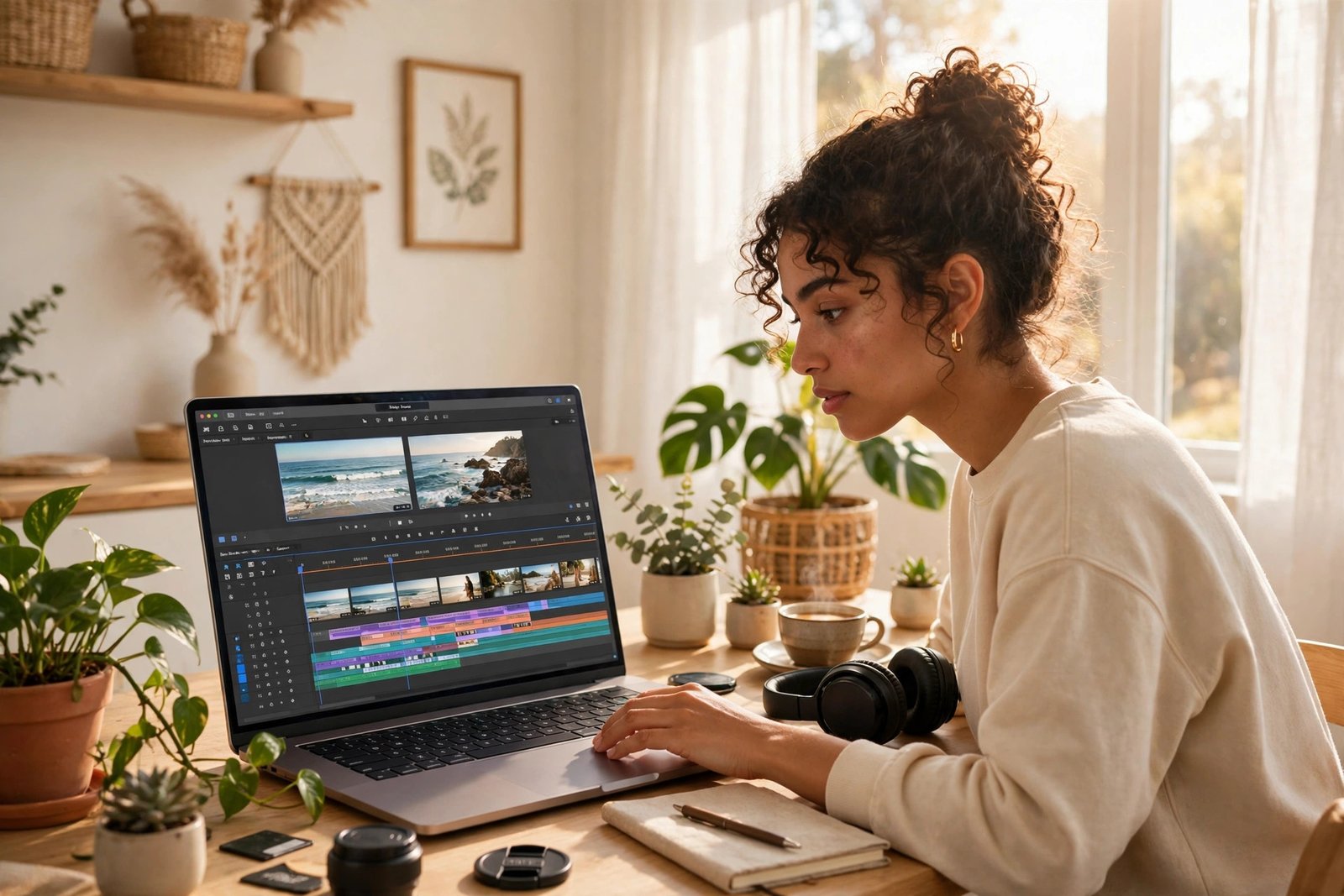
If you make videos for a living, you already know the truth: recording is the fun part, and editing is where the hours disappear. A single ten-minute YouTube video can easily take three or four hours to cut, caption, and polish. That is exactly why AI video editing tools have become essential gear for creators in 2026, not just a novelty.
The best tools do not replace your judgment. They remove the repetitive work: transcribing your footage, cutting out filler words, adding captions, reframing a horizontal video for vertical feeds, and finding the best thirty seconds in a forty-minute recording. What is left is the creative work only you can do, which is choosing the story, the pacing, and the hook.
This guide compares the AI video editors creators actually use in 2026, what each one is best at, where each one falls short, and how to pick the right one for the kind of content you make. Prices and features change often, so always check the vendor’s current pricing page before you subscribe.
How to Choose an AI Video Editor
Before you compare features, get clear on your workflow. The right tool for a podcaster is rarely the right tool for a daily short-form creator, and the right tool for a wedding filmmaker is different again. Ask yourself these questions first:
- What do you make most often: talking-head videos, podcasts, tutorials, vlogs, or short-form clips?
- Where does your video end up: YouTube, TikTok, Instagram Reels, a course platform, or client work?
- How much manual control do you need over cuts, color, and audio?
- Do you edit on a phone, in a browser, or on a desktop computer?
- What is your real monthly budget, including any AI credit limits on top of the subscription?
That last point matters more in 2026 than it used to. Several editors now charge for AI work in credits on top of the plan price, so a cheap monthly fee can become expensive if you process a lot of footage. Look at the credit allowance as closely as the headline price, and check what happens at export: resolution limits, watermarks, and transcription caps are where free plans usually show their limits.
Descript: Best for Talking-Head Video and Podcasts
Descript is the standout choice if you record yourself talking, host a podcast, or make tutorials. Instead of scrubbing through a timeline, you edit a transcript: delete a sentence from the text and the matching video disappears. It sounds simple, and it changes how fast you can work, because reading is faster than listening.
Its filler-word removal cleans up the ums and uhs that make otherwise good recordings feel unpolished, and its Studio Sound feature improves thin or echoey audio. Descript’s own comparison of AI video editors likewise positions transcript-based editing as the best fit for talking-head and podcast workflows. Its AI co-editor can draft edits, suggest cuts, and help assemble clips, which is useful when you are staring at an hour of raw footage and a deadline.
Descript also handles captions and clip creation well, which makes it a strong all-rounder for YouTube creators who also need short-form versions of their videos. The trade-off is that it is not a full professional timeline editor. If your work depends on complex multi-track editing, heavy effects, or precise color work, you will eventually want a traditional editor alongside it.
CapCut: Best Free Option for Short-Form Creators
CapCut remains the default editor for creators who live on TikTok, Instagram Reels, and YouTube Shorts. It is fast, it runs on mobile, desktop, and in the browser, and its core AI features, including auto-captions, background removal, beat sync, and templates, are genuinely usable without paying anything.
That combination is hard to beat when you post daily. You can shoot on your phone, caption the video, reframe it, add trending-style text treatments, and export in minutes. Independent comparisons of 2026 AI editors consistently rank CapCut as the leading free path for short-form social content. CapCut also offers a long-video-to-shorts workflow, so one longer recording can become several short clips.
The catch is that CapCut’s more advanced generative tools run on a credit system tied to its paid tiers. A heavy daily poster will eventually hit limits the free plan does not cover. CapCut is also a social-first editor, not a professional post-production tool, so creators who need precise timeline control or advanced color grading will outgrow it. Still, for short-form volume, it is the best place to start, especially if your budget is tight.
Adobe Premiere Pro: Best Professional Editor with AI Built In
Premiere Pro is the professional standard, and its AI features have made it far more approachable for creators who are not full-time editors. Text-based editing lets you cut by transcript inside a real timeline, media intelligence lets you search your own footage using plain descriptions instead of digging through folders, and Generative Extend can stretch a clip by a few seconds when you need breathing room instead of an awkward cut.
Speech-to-text transcription and subtitle translation are also genuinely useful for creators with international audiences. If you already work in the Adobe ecosystem, or you regularly collaborate with editors, agencies, or brands who expect Premiere project files, this is the natural choice.
The downside is cost and complexity. After the trial period, you are into a subscription, and full access to the AI suite can push you toward Adobe’s higher-tier plans rather than the base one. Beginners can feel overwhelmed by the interface, and the learning curve is real. But if video is your main business and you want one editor that can grow with you for years, Premiere Pro is the safest long-term investment.
Opus Clip: Best for Turning Long Videos into Shorts
Opus Clip is not a general editor. It is a repurposing layer, and it is very good at its one job: finding the best moments in a long video and turning them into short, captioned, vertically reframed clips. For YouTubers and podcasters, that is a huge bottleneck, because manually watching an hour-long video to find five shareable moments is slow, boring work.
Opus Clip scores clips, reframes the speaker automatically, and adds captions, giving you a batch of drafts to review rather than a blank timeline. You still need to check the results, fix misread captions, and reject the clips that do not work, but reviewing ten drafts beats cutting ten clips from scratch.
Think of it as a complement to your main editor, not a replacement. Pair it with Descript for recording and rough cuts, or with Premiere Pro for finishing, and it can multiply the output of every long video you publish.
DaVinci Resolve and Filmora: Strong Alternatives
DaVinci Resolve deserves a mention for any creator who wants professional power without a subscription. Its free version is remarkably capable, and the paid Studio version adds AI-supported tracking, masking, and text-based editing. Its color tools are widely considered the best in the business. The trade-off is a steeper learning curve and a computer that can handle its demands.
Wondershare Filmora sits at the other end: a beginner-friendly desktop editor with a conventional timeline and approachable AI assistance, including speech-to-text, captions, and audio tools. It is a good middle ground for creators who want more control than CapCut offers without jumping into Premiere Pro or Resolve. Like several rivals, its AI tools are metered in credits, so check the allowance before you commit.
Other tools worth knowing about include VEED, which suits browser-based teams that need captions, translation, and collaboration, and Runway, which is better thought of as a generative tool for creating or transforming shots than as a day-to-day editor for your own footage. A 2026 roundup of AI video editors makes the same distinction, separating editors that cut your own footage from generators that create new footage from a prompt.
A Practical Workflow That Saves Real Time
Tools alone do not save time; a repeatable workflow does. Here is a simple setup that works for many solo creators:
- Record in clean takes with a short pause between thoughts, which makes transcript editing far easier.
- Do your rough cut in Descript or Premiere’s text-based editing, removing filler and dead air first.
- Add captions early, because captions change pacing, and you want to see the final rhythm before fine-tuning.
- Use Opus Clip or CapCut to spin short-form versions from the finished long video, not from raw footage.
- Keep a simple template for intros, captions, and end screens so every video starts from the same base.
One more habit pays off: keep your project files organized by date and video title, with raw footage, project files, and exports in separate folders. AI search features help you find clips, but they cannot rescue a project folder that is a mess.
Mistakes to Avoid with AI Editing Tools
First, do not let auto-editing flatten your style. AI cuts are efficient, but they can also remove the pauses, reactions, and personality that make your videos yours. Always review the final cut at full speed, not just by scanning the transcript.
Second, check captions carefully. Auto-captions are good, but they still mishear names, brands, and technical terms. A wrong caption on a short-form video is visible to everyone, and it undermines trust.
Third, do not pay for three editors that do the same job. Pick one main editor, one repurposing tool if you need it, and cancel anything you have not opened in a month. Subscription creep is a quiet profit killer for creators.
Finally, remember disclosure and platform rules. If you use generative AI to create footage, voices, or images rather than just editing your own recording, check the platform’s labeling requirements before you publish. Editing your own footage with AI assistance is a different thing from generating synthetic media, and audiences and platforms treat them differently.
Related reading
- AI Tools That Help Freelancers Work Faster
- YouTube Monetization Requirements and the Partner Program
Frequently Asked Questions
What is the best AI video editing tool for beginners?
CapCut is the easiest starting point for short-form creators, because it is free, fast, and mobile-friendly. For talking-head videos and podcasts, Descript is the most beginner-friendly option, since editing a transcript feels more natural than learning a timeline. Both let you produce publishable videos before you invest in a professional editor.
Can AI video editors replace a human editor?
Not entirely. AI is excellent at transcription, rough cuts, captions, and repurposing, but it cannot judge story, tone, or taste the way you can. The best results come from letting AI do the first pass and keeping the creative decisions, the final review, and the publishing judgment in human hands.
Is Descript or Premiere Pro better for YouTube videos?
Descript is faster for talking-head and podcast-style YouTube videos, especially when you publish weekly. Premiere Pro is better when you need precise timeline control, advanced color, effects, or collaboration with professional editors. Many creators use Descript for the rough cut and Premiere Pro for finishing.
Are free AI video editors really free?
They are free up to a point. Free plans usually limit export resolution, transcription hours, AI credits, or add watermarks. Before you build your workflow around a free plan, check those limits against your actual output, because hitting a cap mid-project is frustrating.
How do I turn one long video into many short clips?
Finish the long video first, then use a repurposing tool such as Opus Clip or CapCut’s long-video-to-shorts feature to generate captioned vertical drafts. Review each draft, fix captions, cut anything that does not stand alone, and publish only the clips that make sense without the full video’s context.